The best open-source password managers of 2026: cloud, local, and self-hosted options
Being behind major reports like The Mother of All Breaches and WhatsApp Data Leak, our in-house cybersecurity experts conduct independent, unbiased testing and thorough analysis of password managers, helping users confidently manage their credentials and sensitive information.
We prioritize transparency by openly sharing detailed descriptions of our in-house testing procedures and methodologies.
Learn more
When choosing a password manager, strong encryption is only part of the equation. After all, your password manager protects the keys to your entire digital life, so it's important to know you can trust the software storing them.
That's where open-source password managers stand out. Unlike closed-source apps, whose code is hidden from the public, open-source software can be inspected, audited, and verified by anyone. This level of transparency helps security researchers and the developer communities identify vulnerabilities, verify security claims, and improve the software over time.
To help you find the right option, I researched the best open source password managers available today. Whether you're looking for a cloud-synced solution, a local-only vault, or a self-hosted platform, this guide covers the top picks to help you choose a secure password manager with open source that fits your needs.
Why choose an open-source password manager?
When comparing password managers, most people focus on features like zero-knowledge encryption, independent security audits, and industry certifications. Those are all important, but another factor worth considering is whether the password manager is open or closed source. Here are some reasons why people choose an open-source password manager:
- Verifiable security. Instead of simply trusting that your password manager protects your data as advertised, anyone with the right expertise can verify how it encrypts, stores, and secures your information.
- Greater transparency. Security researchers can inspect the code for vulnerabilities, implementation mistakes, or potential backdoors. With more experts reviewing the software, issues are often identified and fixed faster.
- More control over your data. Many open-source password managers let you self-host your encrypted vault, so you avoid the potential dangers of hosting it on the provider's servers.
- Community-driven improvements. While reputable open-source password managers still undergo independent audits, they can also receive continuous review from developers and security researchers around the world, adding another layer of oversight.
Top open-source password managers compared
Below, I compare the top open-source password managers side by side, giving you a quick overview of their key differences.
| Brand | Host type | Encryption algorithm | Two-factor authentication (2FA) | Support | User experience difficulty |
| Proton Pass | Cloud-hosted | End-to-end, AES-256-GCM | ✅ Yes | Knowledge base, ticket, email, priority, and phone support for business users | Easy |
| Bitwarden | Cloud-hosted, self-hosted | End-to-end, AES256-CBC-HMAC-SHA256 | ✅ Yes | Knowledge base, community support, ticket, 24/7 email priority support for business users | Easy |
| KeePassXC | Self-hosted (local) | AES-256 and Argon2 | ✅ Yes | Knowledge base, community support | Medium-hard |
| Vaultwarden | Self-hosted | AES-256, ChaCha-256, SHA-256 | ✅ Yes | Knowledge base, community support | Hard |
| Passbolt | Cloud-hosted, self-hosted | OpenPGP | ✅ Yes | Knowledge base, community support, ticket for paid users | Medium-hard |

Inside the best open-source password managers of 2026
Finding the best password manager that’s open source isn't difficult, but choosing the right one depends on your needs. Below, I've taken a closer look at each of the top options, covering their security, features, pricing, and who they're best suited for.
1. Proton Pass – best for privacy ecosystem and email masking

| Rating: | |
| Pricing: | Free; paid plans from $2.49/month |
| Hosting type: | Cloud-hosted |
| Current deal: | Get ProtonPass, now up to 50% OFF! |
Proton Pass is the best open-source password manager if you want strong privacy without sacrificing convenience. It's part of the Proton ecosystem, so if you already use Proton Mail, VPN, Drive, or Calendar, everything works seamlessly together. It also includes built-in email aliases, making it easy to hide your real email address and cut down on spam.
This password manager really stands out with its security. Proton Pass apps are fully open source, so anyone can inspect the code, and it’s independently audited by firms like Cure54 and Recurity Labs. It uses end-to-end encryption, so only you can access your passwords. And since Proton Pass is based in Switzerland, your data is also protected by some of the world's strongest privacy laws.
Beyond storing passwords, Proton Pass helps you manage your online accounts in one place. You can save passkeys, payment cards, secure notes, and 2FA codes, so you don't have to rely on multiple apps. Paid plans also include dark web monitoring and password health alerts to help you spot security issues before they become a bigger problem.
Despite its advanced security, I still found Proton Pass very easy to use. It works across Windows, macOS, Linux, Android, iOS, browsers, and the web, so your passwords stay synced wherever you sign in. There's also a generous free plan, while paid plans start at $2.49/month and add more email aliases, security tools, and family or business options.
2. Bitwarden – best for multi-device cloud syncing

| Rating: | |
| Pricing: | Free; paid plans from $1.65/month |
| Hosting type: | Cloud-hosted, self-hosted |
| Current deal: | Get Bitwarden for just $1.65/month |
Bitwarden is one of the best open-source password managers in 2026 if you want an open-source password manager that works seamlessly across all your devices. Whether you’re using its cloud hosting or hosting your vault yourself, you can sync between devices, including PC, mobile, browser extension, or the web app.
Your passwords are protected with end-to-end encryption and a zero-knowledge architecture, so you’re the only one who can access your vault. While Bitwarden is open source, it has also passed multiple independent security audits, making it a trusted choice for both individuals and businesses. The only downside is that Bitwarden is based in the US – a member of the Five Eyes alliance. If jurisdiction is important to you, that's something worth keeping in mind.
Bitwarden apps are easy to navigate, even if they aren’t quite as polished as Proton Pass. The best thing about this password manager is that it allows you to choose between cloud hosting and hosting the vault yourself. If you're comparing Bitwarden vs KeePassXC vs Proton Pass, Bitwarden seems like a more flexible option in that sense.
Its free plan is generous enough for most people. If you need premium features, Personal plans start at $1.65/month, Family plans at $3.99/month, and Business plans at $4.00/month/user. All paid plans include a 30-day money-back guarantee.
3. KeePassXC – best for offline, local-only control
| Rating: | 3.5 ⭐️ |
| Pricing: | Free |
| Hosting type: | Self-hosted (local) |
| Current deal: | - |
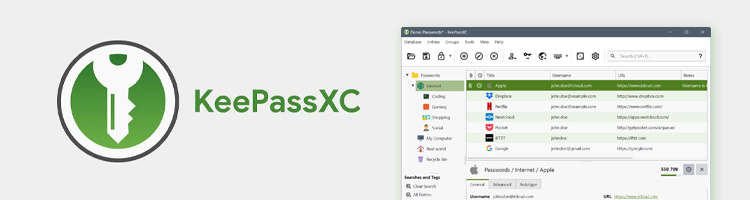
KeePassXC is based on the original KeePass project, but offers a more modern experience for Windows, macOS, and Linux. If you want a local password manager that keeps your passwords completely off the cloud, it's one of the best options you can choose.
Its main benefit is the control it gives you. Your password vault stays on your own device instead of being stored on someone else's servers, so you don't have to worry about cloud data breaches. KeePassXC also uses AES-256 and Argon2 encryption and has been independently audited by the National Cybersecurity Agency (ANSSI).
I'll be honest, KeePassXC is pretty bare bones. It gets the job done, but the interface feels dated compared to Proton Pass or Bitwarden. You'll also have to figure out your own system for syncing your vault between devices (via Dropbox or Syncthing) and keeping backups. Some people love having that level of control. Personally, I think it's only worth it if keeping everything local is your top priority.
The good news is that KeePassXC is entirely free. You can donate if you want to support the team behind it.
4. Vaultwarden – best for resource-efficient self-hosting
| Rating: | 3.5 ⭐️ |
| Pricing: | Free |
| Hosting type: | Self-hosted |
| Current deal: | - |
Vaultwarden is a lightweight, unofficial version of the Bitwarden server that lets you run your own self-hosted password manager without needing powerful hardware. Because it’s written in Rust and uses fewer resources than the official Bitwarden server, you can easily run it on devices like a Raspberry Pi. Basically, you get the privacy and control of hosting your own password manager without the expensive setup.
Vaultwarden is a strong choice if you want more control over where your passwords are stored. It uses Bitwarden’s end-to-end AES-256 encryption to keep your data protected, and because it’s open source, anyone can inspect the code for potential issues. It hasn’t undergone any independent audits, but you can inspect the code yourself. The app also had some security flaws in the past, but they were resolved quickly.
If you used Bitwarden before, Vaultwarden will feel familiar. You can use the official Bitwarden apps, browser extensions, and command-line tools. It supports features like 2FA, passkeys, secure notes, payment details, identity storage, SSH keys, and password generation.
Vaultwarden is completely free to use. If you find it useful, you can support the project through donations.
5. Passbolt – best for IT teams and enterprise collaboration

| Rating: | |
| Pricing: | Free; paid plans from $4.90/month |
| Hosting type: | Cloud-hosted, self-hosted |
| Current deal: | Get Passbolt for just $4.9/month! |
Passbolt is a secure password manager with open source, built for teams. Instead of just helping you store passwords, it gives IT teams more control over how credentials are shared, managed, and protected across an organization.
Security is where Passbolt really stands out. It uses OpenPGP-based encryption, has gone through independent audits, and regularly performs penetration testing. So even if you don’t have the time or expertise to review the open source code yourself, you can trust that security researchers are continuously checking that everything works as it should.
Passbolt's features speak to why it's best for businesses. You can share passwords with specific teams, manage access permissions, organize credentials into folders and workspaces, and choose whether you want to use Passbolt’s European-hosted servers or host everything yourself for full control.
The user experience is decent, although it feels a little more technical. I could easily create folders and share them with groups, but the auto-fill doesn’t always recognize login fields correctly.
Passbolt’s Community Edition is completely free. Paid plans start at $4.90/month/user for the Pro version, with custom pricing available for larger organizations.
Cloud-sync vs local-only vs self-hosting: which is right for you?
How your password manager stores and syncs your vault is just as important as the features it offers. However, there's no universal best option here. It all depends on how much convenience or control you want.
| Hosting type | Pros | Trade-offs | Examples |
| Cloud-hosted | Easiest to set up, automatically syncs across devices, provider handles updates, backups, and maintenance | You rely on the provider to host your encrypted vault, so you have less control over where your data is stored | Proton Pass, Bitwarden |
| Local | Your vault stays on your device, works without an internet connection, gives you complete control over your data | No automatic device sync, you manage your own backups, less convenient if you use multiple devices | KeePassXC |
| Self-hosted | You control where your vault is stored while still getting device sync, ideal if you want full ownership of your data | Requires setting up and maintaining your own server, including updates, backups, and security | Vaultwarden, Passbolt |
Here’s a quick summary of which solution I recommend based on your needs:
- If you just want a password manager that works out of the box, choose a cloud-hosted option.
- If total control matters most, go with a local password manager.
- If you're comfortable managing your own server and want full control without giving up syncing, a self-hosted password manager is the way to go.
Build a secure privacy shield with Proton Pass
If you're just getting started with open-source password managers, Proton Pass is one of the easiest options to begin. It gives you the transparency of open-source software without making password management feel complicated.
One of the biggest advantages of Proton Pass is that it's open source. Since it has a large and active community, its code is constantly being reviewed by developers and security researchers. On top of that, Proton Pass regularly undergoes independent security audits, giving you another layer of confidence that the app is doing what it claims.
What I like most is that you don't have to sacrifice convenience for security. The interface is clean, syncing works across your devices, and you can start using it in just a few minutes.
You can even start using Proton Pass entirely for free. The free version gives you unlimited password storage and allows you to sync your vault across unlimited devices, which is more generous than many other free password managers that limit you to a single device.
For more features, you can also upgrade to a paid plan:
- Proton Pass Plus: from $2.49/month
- Proton Pass Family: from $4.19/month
- Proton Pass Unlimited: from $9.99/month
- Business plans: starting at $1.99/month/user
With paid plans, you get features like password sharing, hide-my-email aliases, dark web monitoring, and other extras depending on the plan.
If you’re currently using a different password manager or even storing passwords in a browser, you can transfer everything to Proton Pass with a single click. You don't have to manually copy and paste each login.
Overall, if you want an open-source password manager that's transparent, secure, and simple to use, Proton Pass is an excellent place to start. It offers strong security without adding unnecessary complexity, whether you're switching from another password manager or using one for the first time.
FAQ
Are open-source password managers safer than proprietary ones?
Yes, open-source password managers are generally considered safer because anyone can inspect their code. This allows security researchers to find bugs, verify security claims, and spot hidden backdoors or vulnerabilities.
What is the difference between Bitwarden and Vaultwarden?
Bitwarden is the official open-source password manager with cloud hosting and business features. Vaultwarden is an unofficial, lightweight server that's compatible with Bitwarden apps and designed for people who want to self-host on their own hardware.
Can I sync KeePassXC across multiple devices?
Yes, but not automatically. KeePassXC doesn't include built-in syncing, so you'll need to sync your encrypted database file yourself using a cloud storage service like Proton Drive, Dropbox, or Nextcloud, or with a tool like Syncthing.
Is Proton Pass fully open source?
Yes, all Proton Pass apps are fully open source. The code is available on GitHub and has been independently audited to verify its security.
How does a local-only password manager work?
A local-only password manager stores your encrypted passwords in a file on your device instead of a cloud server. The file is unlocked locally with your master password or a key file, so your data stays under your control unless you choose to share or back it up.